Windows Updates and USB Audio CODEC Issues ― 2025年11月30日 10時45分46秒
If you upgraded to Windows 11 25H2 and noticed that the WSJT-X / JTDX wide graph looks strange, you’re not alone. I ran into the same issue—and finally figured out why.

Windows 11 23H2 → 24H2/25H2 introduced stronger automatic microphone processing (noise suppression, voice optimization, etc.).
Unfortunately, Windows applies these “enhancements” to USB Audio CODEC as well, which completely messes up the FT8 spectrum (wide graph).
The display becomes uneven and no longer flat.
After the update, you must check the audio settings:
Turn OFF all audio enhancements
Windows Settings → System → Sound
Input → USB Audio CODEC
Scroll down and disable everything such as:
Audio Enhancements
Enhance audio
Voice Clarity / Noise Suppression (AI noise reduction)
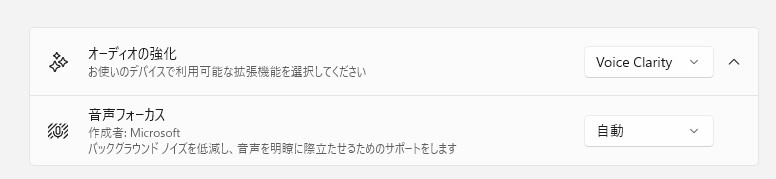
In Windows 11 25H2, these often turn ON automatically.
For JTDX/WSJT-X reception, these features are harmful, so set them all to OFF.

Turning them off immediately restored my wide graph to normal.

Also check your USB Audio CODEC input level
Windows updates sometimes reset the level to 100, which causes:
Wide graph saturation and jagged display
Input level indicator turning red
Taskbar speaker icon → Sound settings
Sound → Input devices → USB Audio CODEC
Adjust Volume (Level) while WSJT-X/JTDX is running to keep the input at a proper level.
I usually use an external sound card, but when I happened to try USB Audio CODEC again, I noticed all of this. Hopefully this helps someone!
コメント
トラックバック
このエントリのトラックバックURL: http://jp1lrt.asablo.jp/blog/2025/11/30/9820547/tb
※なお、送られたトラックバックはブログの管理者が確認するまで公開されません。
コメントをどうぞ
※メールアドレスとURLの入力は必須ではありません。 入力されたメールアドレスは記事に反映されず、ブログの管理者のみが参照できます。
※なお、送られたコメントはブログの管理者が確認するまで公開されません。
※投稿には管理者が設定した質問に答える必要があります。